AI Works Where Your Hands Already Are
This post is also available in German: KI arbeitet dort, wo deine Hände schon sind
My agents have had a cockpit for a while now, a small page on my Mac that shows which agent is running and where one of them is waiting for me. It did that well, as long as I looked at it. Most days I didn’t. The tab drifted behind a dozen other windows, somewhere between Outlook and whatever deck I was fighting with that afternoon, and a question one of the agents had asked me in the morning was still sitting there hours later. The agents had done their part, I just wasn’t anywhere near the place where their work showed up.
So Bob, the agent that builds and maintains my fleet, built two small things for me, a menu bar app called Fleet Tray and a quick launcher next to it. Neither of them gives the agents a single new skill. They change where the agents meet my day, and that’s the part I hadn’t thought about at all while I spent weeks tuning the agents themselves.
If you want to know how the fleet is built, Nine AI Agents, One Human in Charge has the long version. For this post it’s enough to know that a group of agents works for me in the background, each with its own job and its own folder, and that nothing they produce goes out to anyone without my go.
Every extra window is one more thing nobody opens
When companies talk about AI, the conversation tends to be about the tool, which model, and whether the new assistant beats last quarter’s. I get why, because that’s what vendors put on their slides and what’s easy to compare in a spreadsheet. In my own setup, though, the model was never the reason something got stuck. Things got stuck because the AI lived in a place I had to remember to visit, and on a busy day I didn’t.
Everyone’s day already has a shape, with a few places you look at a hundred times and a few moves you make without thinking, like dragging a file somewhere or hitting a shortcut. Anything that asks you to leave those places competes with everything else on your plate, and it loses more often than its owners would like to admit.
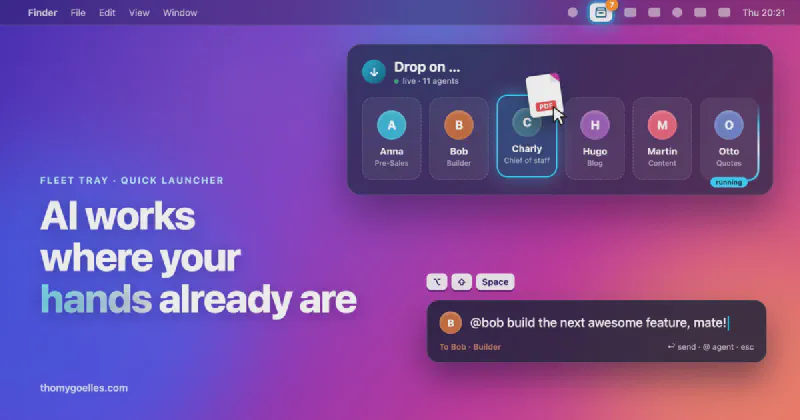
For me those places are the macOS menu bar and two moves my hands make all day anyway, a hotkey and drag and drop. So that’s where the agents went.
The badge counts only what’s waiting for me
Fleet Tray is an icon in the menu bar with a number on it, and that number was the design decision I cared about most. It counts only the things that are waiting for me, meaning open go/stop proposals and questions a run is stuck on, and what the agents did today stays out of it. If the badge says zero, nothing needs me, and I can stop thinking about the fleet entirely. When an agent is working, the icon fills in, which tells me something is happening without asking me to do anything about it.
Hovering over the icon opens a dark band across the screen. On the left is what’s waiting for me. On the right each agent has a card with its status, and a running agent’s card has a light circling around it. I can see in a second who’s busy and what’s blocked, and when I move the mouse away the band is gone again.
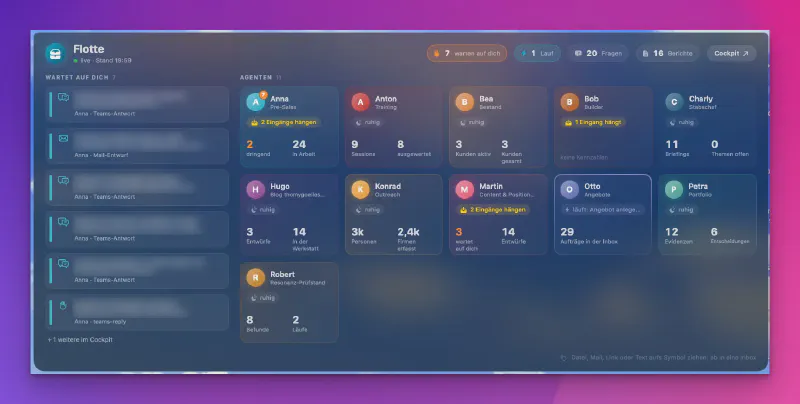
On the technical side this is a small thing. The tray is a thin client over the local cockpit and has no logic of its own about the fleet, so everything it shows already existed before. What changed is that the display now answers exactly one question, whether something needs a decision from me, and keeps quiet about everything else. Agents are allowed to work silently. My attention is the scarce part of the whole system, and a dashboard that shows me everything spends it on things that don’t need me.
Handing over work is a drag and drop
The second gesture is the one I use most. I drag a file, a folder, a mail, a link or a bit of selected text onto the tray icon, the agent tiles appear, and I let go over the one that should have it. If I drop it straight onto the icon, it goes to Charly, my chief of staff agent, who works out who it belongs to.
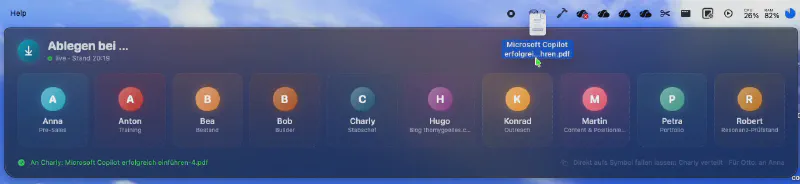
What happens next is deliberately unspectacular. The item lands in that agent’s inbox as a file, and the agent picks it up on its next regular round, exactly like anything else that arrives there. A drop never overwrites something that’s already in the inbox, and every drop is logged. There’s no separate tray channel with rules of its own, because the tray is just one more way into a door that was already there.
That’s the principle I’d put in front of any architecture discussion. Give a system of agents one entrance, and make sure every gesture people want to use leads there, instead of building a new surface each time someone finds another way they’d like to talk to it.
One hotkey, and it takes the same road as a voice message
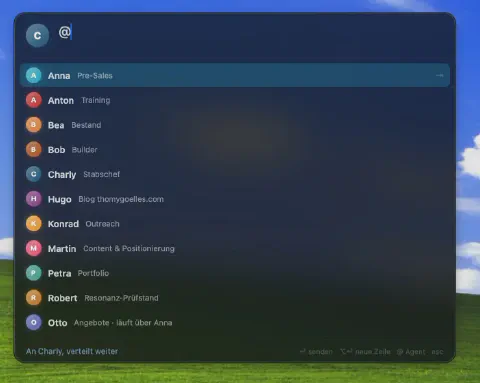
For everything that starts as a thought rather than a file, there’s the quick launcher. Option-Shift-Space opens a small field in the middle of the screen, much like Spotlight. I type an @ to pick the agent, write a sentence and hit Enter, and the field disappears again before I’ve really left whatever I was doing.
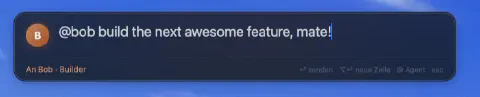
Behind the field, the request starts a run on the same path as a voice message from my phone, and that matters more than it looks. Whether I speak into my phone or drop a file on the icon, the work ends up in the same inbox and follows the same rules. So there’s one place where I decide what agents may do and one log of what they did, instead of a separate set of rules per entry point, each a little different from the last.
When an agent needs something from me, it doesn’t pop up in the middle of my screen. Its questions collect under “Waiting for you” in the cockpit and show up in the badge count, and I answer them when I come up for air, which is rarely the moment the agent happens to be ready.
The agents decide the small things, and I release what goes out
A quiet interface only works if the agents don’t need me for everything, and getting there took longer than building the tray. My agents are told to decide anything internal and reversible on their own, like where a file goes or when to set a reminder, and to tell me afterwards what they decided. Anything with an effect outside the fleet stays with me. When an agent wants to reply to someone, put a mail draft in my mailbox or change a record in the CRM because of something that came in, it sends me a proposal with go or stop, and it’s carried out only after my go, with exactly the text I approved.
Those proposals are what the badge counts. The number on the icon is really the count of places where a human has to take responsibility, and it’s meant to stay small. If it grew every day, I wouldn’t blame the display. I’d look at the agents, because it would mean they were handing their work back to me as questions.
For most companies, the menu bar is called Outlook
My setup is a personal one on one Mac, and I haven’t measured how much time the tray saves me, so I won’t put a number on it. What I can say is that the agents themselves didn’t change when the tray arrived, and the way I work with them did.
That’s what I’d take into any Copilot or agent rollout. The adoption question is usually framed as which tool to buy and how to train people on it. I think it’s a question about place. Where does work arrive in someone’s day, and which moves do they already make without thinking? For most people in a Microsoft 365 company the answer isn’t a menu bar. It’s Outlook and Teams. An agent that lives behind its own URL competes with both of them, while one that shows up in the mail people already read or in the chat they already have open has a much easier time, and so does one that sits behind a right-click on the file someone is holding in File Explorer.
The principles behind the tray travel better than the app itself. Route every gesture to the same entrance. Let the agents ask in a batch instead of interrupting, keep everything that goes out with a human, and show people only what needs a decision from them. The rest is noise they’ll learn to ignore, and once they ignore the display they’ll also miss the one item on it that mattered.
In the fourth of my questions before your first agent I wrote that an agent should go and fetch the work instead of waiting in a chat window. This is the other half of that thought. Once the agent works in the background, the person it works for still needs a place to meet it, and that place should be somewhere they already spend their day.
Enjoyed this post? Let's continue on LinkedIn.
Follow on LinkedIn